Loading generate…
Open Generate, drop in a PNG, JPEG, or WebP under 8 MB, pick a mesh density, and run the job. Generate returns a downloadable GLB you can orbit in the studio, open in the free GLB viewer, or convert to OBJ or STL. A photo of one clear object on a plain background gives the best mesh.
Generate builds a new object from your photo. It is a separate studio from the 3D logo editor, which extrudes the exact mark you upload and never changes its shape.
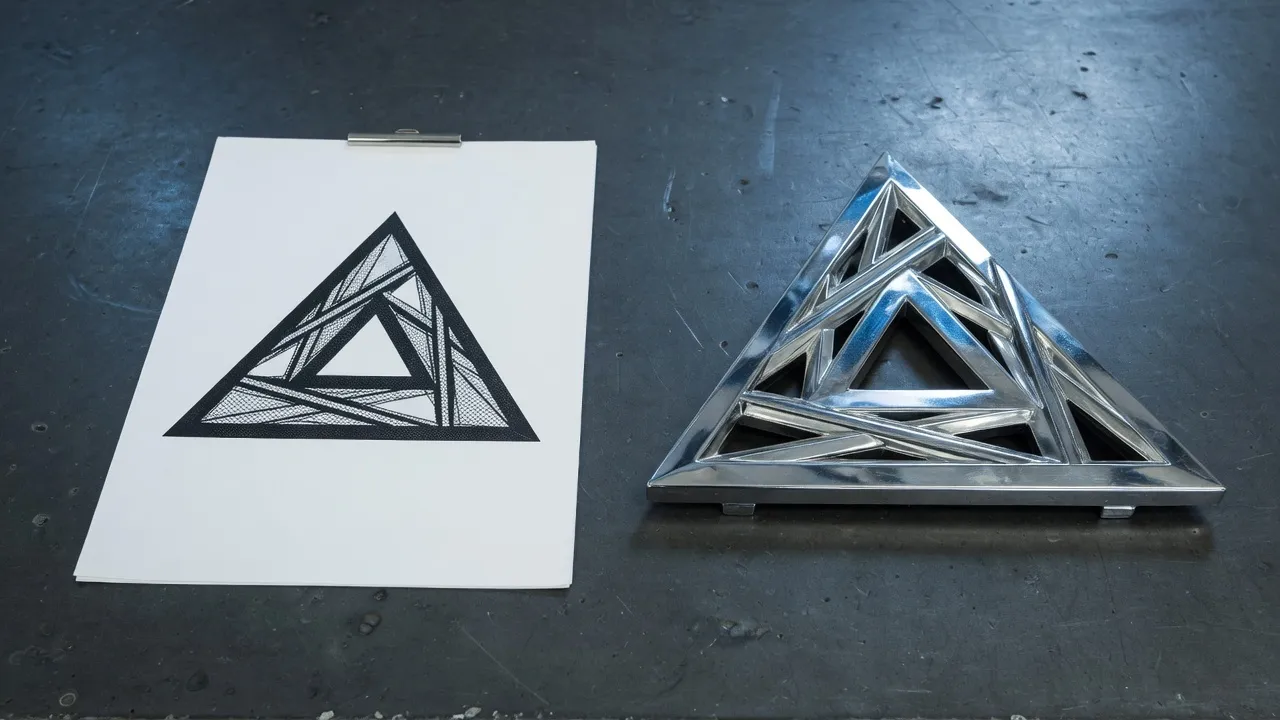
One subject, filling most of the frame, lit evenly, on a plain background. The generator infers the sides and back of an object it can only see from the front, so anything that hides the silhouette costs detail: clutter, heavy shadow, motion blur, or a second object competing for the frame.
Accepted files are PNG, JPEG, and WebP. A file dropped into the studio is sent as a data URL and must be under 8 MB; a job started through the API or an AI assistant can pass a publicly reachable http or https URL instead. Anything else is refused before the job starts, so a refusal costs no credits.
Silhouette matters more than resolution. A 900 px photo of a mug against a white wall produces a cleaner mesh than a 4000 px photo of the same mug on a crowded desk, because the outline is where the shape is read from. Crop to the subject before uploading rather than relying on the generator to find it.
Transparency is not a shortcut. A PNG with an alpha channel is accepted, but the generator reads the visible pixels, so a cut-out on a transparent background behaves like a cut-out on a flat one. What it does help with is removing a distracting background you cannot re-shoot.
A flat logo is the wrong input here. If you want your existing mark in 3D, extrude it in the editor instead: the editor keeps your exact outline, and Generate would invent a new object that merely resembles it.
Five steps, from an open studio to a downloaded GLB. The whole run is between about twenty seconds and about four minutes depending on the density you choose.
1
Open Generate and stay on the Image tab.
2
Drop in a PNG, JPEG, or WebP of one clear subject, under 8 MB.
3
Pick a mesh density. Fast is the quick draft; Standard, High, and Ultra return full-detail meshes.
4
Leave Texture on for a coloured mesh, or turn it off for a white clay mesh you will material yourself.
5
Run the job, orbit the result in the viewport, then download the GLB.
Run Fast to find out whether the photo works at all, then re-run the same photo at a higher density once you know it does. Fast caps the mesh at 20,000 faces and returns in about twenty seconds; Ultra reaches 1,000,000 faces and takes about four minutes.
| Density | Plan | Face ceiling | Typical wait | Cost | What it is for |
|---|---|---|---|---|---|
| Fast | Pro | 20,000 faces | about 20s | 30 credits | Quick textured draft |
| Standard | Pro | 500,000 faces | about 2 min | 68 credits | Full-detail mesh |
| High | Pro | 500,000 faces | about 2 min | 120 credits | PBR, hard-surface, extra views |
| Ultra | Pro | 1,000,000 faces | about 4 min | 203 credits | PBR at 1M faces |
Add a back, left, or right photo when the subject is asymmetric and the front view cannot imply the rest of it. Extra views are a Pro feature, and adding one to a Fast or Standard job promotes that job to High, because only the High and Ultra engines read more than the front image.
Up to three extra views are accepted: back, left, and right. They are most worth the credits on hard-surface objects whose back is genuinely different from the front, such as a device with ports, a vehicle, or a figure with something on its back.
They are worth least on rotationally simple objects. A mug, a bottle, or a ball is already implied by one photo, and the extra views mostly buy a cleaner seam.
Shoot the extra views at the same distance and lighting as the front. Views that disagree about the size or colour of the subject make the mesh worse, not better, because the generator has to reconcile them.
A GLB: one binary file carrying the geometry, the material, and any texture the job produced. You can orbit it in the studio before downloading, and it opens in the free GLB viewer on this site with nothing to install.
A GLB from Generate goes straight into a web viewer, an AR view, or a game engine. If the receiving tool wants something else, the on-device 3D converter recodes it to glTF, OBJ, STL, or PLY in the tab, with no upload.
Face counts matter downstream. An Ultra mesh at up to 1,000,000 faces is heavier than most websites should serve directly; for a web page, either generate at a lower density or decimate the mesh in a desktop tool first.
Turning Texture off returns a white clay mesh with no colour information. That is the right choice when you plan to apply your own material, and it is the wrong choice when the colour in the photo is the point.
It will not reproduce your photograph exactly, it will not measure a real object to scale, and it will not preserve a logo outline. Generate makes a plausible 3D object that reads as the thing in the picture, which is a different promise from a scan or an extrusion.
Hidden geometry is invented. Anything the camera could not see is a guess, and the guess is confident rather than accurate. That is why extra views exist, and why a scanned part is still the right tool when dimensions matter.
Fine text and thin detail do not survive. Lettering on a label, a wire, or a strap thinner than a few percent of the frame is usually smoothed away, most of all at Fast density.
Failed, cancelled, and timed-out jobs return their credits to the account, so an experiment that does not work costs time rather than allowance.
PNG, JPEG, and WebP. A file dropped into the studio must be under 8 MB. A job started through the MCP server or the API can pass a publicly reachable http or https image URL instead of a file.
Generate runs on Pro credits at every density. The 3D logo editor, its exports, and sharing stay free.
Fast returns in about 20s, Standard and High in about 2 min, and Ultra in about 4 min. Those are queue-inclusive wall-clock times, not engine times.
No. Generate builds a new object that resembles the picture. To keep an existing mark exactly, upload the SVG or PNG to the 3D logo editor instead, which extrudes the outline you gave it.
They return. A job that fails, is cancelled, or times out refunds the credits it reserved. Welcome credits are spent before period credits.
Yes. Download the GLB and open the GLB to STL converter, which runs on the device. STL carries print triangles only, so colour and material do not travel with it.
Keep history on your account. The logo editor stays free for chrome, gold, and glass marks.